Take everything off the shelf
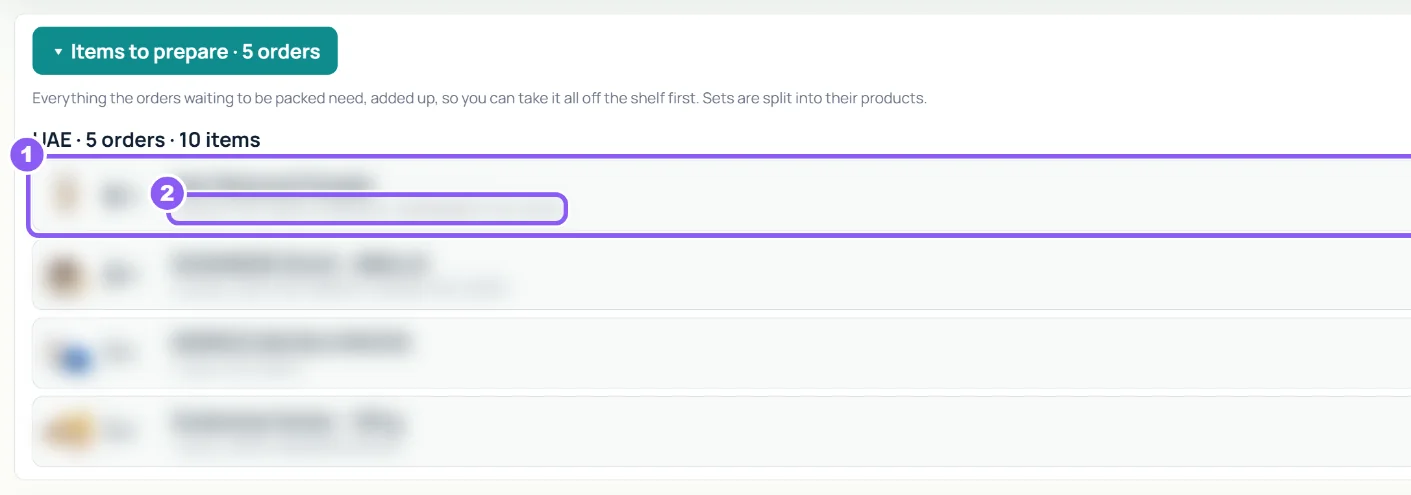
Open Items to prepare. It adds up every product the waiting orders need, grouped, with the order codes. Sets are split into their products.
 All guides
Packing shows the processing orders, one at a time, so your packer does not miss anything. Packed sends the order to delivery; Dropshipped means your supplier ships it.
Open Items to prepare. It adds up every product the waiting orders need, grouped, with the order codes. Sets are split into their products.
The card shows the customer, the address and What's inside. Tap a product picture to see it bigger.
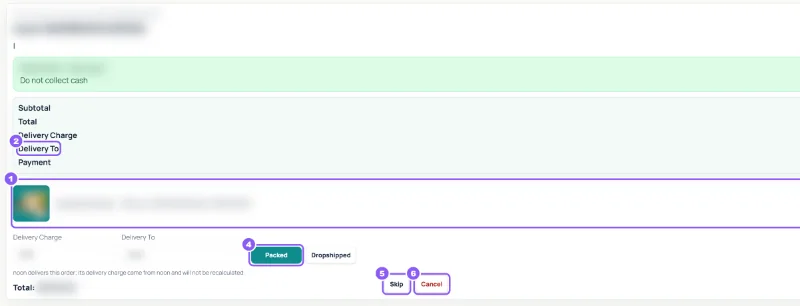
Choose Delivery To (the delivery company). The Delivery Charge fills in; tick Free delivery if the order ships free. Products you marked as free delivery in Settings tick it for you.
Click Packed when it leaves with the courier, Dropshipped if the supplier ships it, Skip to come back later, or Cancel. Cancel asks: Keep order, Cancel here only, or Cancel + update platform (your website too). The next order opens by itself.
In Processing Queue, tick orders that are already done and click Mark selected packed or Mark selected dropshipped.
Everything is packed. New orders appear as soon as they arrive.
Ask the store owner to give you access in Admin → Assign Store.
Yes, with the Android packing app. See the packing app.